

How to Install IPTV Smarters Pro on Samsung – Simple Guide
How to Install IPTV Smarters Pro on Samsung – Simple Guide
Looking for how to install IPTV Smarters Pro on your Samsung Smart TV? You're in the right place! This guide will help you easily access lots of content. Your living room will become a true entertainment center.
Key Takeaways
- Check your Samsung TV compatibility before starting the installation.
- IPTV Smarters Pro offers HD or 4K image quality.
- Create user profiles for optimal personalization.
- Secure your data with complex passwords and a VPN.
- Resolve technical issues with tips and online support.
What is IPTV Smarters Pro?
IPTV Smarters Pro is an application for streaming content on multiple devices. It works on Smart TVs, mobiles, Android boxes, and media players. It supports formats like MPEG-TS and HLS.
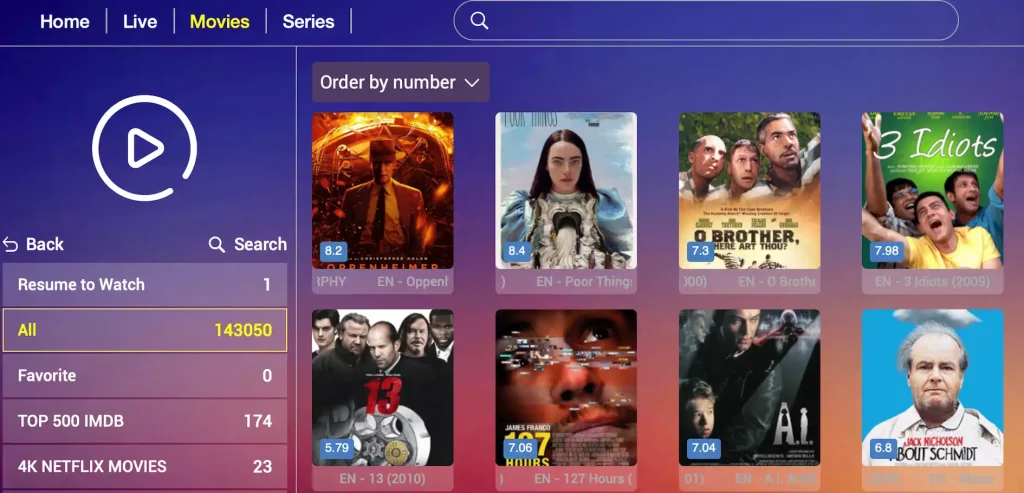
It's easy to use. You can sort channels by country and create favorites. It also offers advanced features like multi-screen support.
Why Use IPTV Smarters Pro on Samsung?
Using IPTV Smarters Pro on Samsung has many advantages. The app works well with Samsung Smart TVs, ensuring a great user experience.
You can customize the interface, add a VPN, change buffer size, and add external players. You can check the TV guide, add favorites, create custom playlists, and watch subtitled videos.
Samsung TV Compatibility with IPTV Smarters Pro
Compatible Samsung TV Models
Most recent TVs running Tizen OS work with IPTV Smarters Pro. This includes Samsung QLED, SUHD, and UHD models.
Installation Prerequisites
- Your Samsung TV must have Tizen OS.
- Update your TV to the latest software version.
- A stable Internet connection is essential.
- If you have compatibility issues, consider using an external IPTV box.
Preparation Before Installation
Make sure your Samsung Smart TV is properly connected to the Internet before starting.
- Check that your Samsung TV is up to date.
- Connect to a stable Wi-Fi or Ethernet network.
- Gather all login information from your IPTV provider.
Steps to Install IPTV Smarters Pro on Samsung
Step 1: Access Samsung Smart Hub
Turn on your Samsung TV. Press the Smart Hub button on your remote. You'll reach the app download center.
Step 2: Search for IPTV Smarters Pro
In the Smart Hub, use the search function. Search for IPTV Smarters Pro. Type the name in the search bar and press "Enter".
Step 3: Install IPTV Smarters Pro
When IPTV Smarters Pro appears, select the app. Click the Install button. Installation takes a few moments.
Step 4: Open the App and Enter Credentials
After installation, open IPTV Smarters Pro. The first time, enter your login credentials from your IPTV provider. Once connected, explore the channels and features available.
Configuring IPTV Smarters Pro
Creating User Profiles
Create user profiles so each family member has their own space with favorite channels and playlists.
- Multiple access: Profiles let multiple users access their own preferences.
- Separate management: Each user manages their playlists and viewing history.
- Security: Profiles can be password-protected.
Managing Playlists
You can add channels in various ways:
- M3U File: Load favorite channels via M3U file or URL.
- Xtream Codes API: More advanced setup with catch-up access and automatic EPG updates.
Interface Customization
- Layout: Choose between different layouts and themes.
- Playback settings: Change default player or add active subtitles.
- Parental controls: Activate parental controls to limit access to certain content.
Security and Data Protection
Using Secure Passwords
A good password has letters, numbers, and symbols. This helps protect your data against unauthorized access.
Regular App Updates
Keep IPTV Smarters Pro updated regularly. Updates bring improvements and protect against security issues.
VPN Benefits for IPTV Users
A VPN hides your IP address and encrypts your connection. It prevents others from seeing your online activity. A VPN can also unblock restricted content.
Troubleshooting Common Issues
Connection Problems and Solutions
Connection issues may come from overloaded IPTV servers or maintenance. To improve connection:
- Ensure you have at least 10 Mbps.
- Move the router closer to the TV.
- Using an Ethernet cable can also help.
App Bug Fixes
- If an update is available, update or reinstall the app.
- Slowdowns may occur during major sporting events. Consider the Pro version.
Resetting the App
- Go to IPTV Smarters Pro settings.
- Select the reset or data clearing option.
- Confirm your choice and restart the app.
Maximizing User Experience
Improving Image Quality
Choose a reliable IPTV provider for better image quality. Ensure you have good Internet. Use the Pro version for uninterrupted experience.
Optimizing Sound Quality
Check your TV's audio settings. Add external speakers or a soundbar for better sound quality.
Exploring Different Content Sources
IPTV Smarters Pro offers over 21,000 channels with affordable subscriptions. For more customization, try VLC Media Player and IBO Player.
Conclusion
This guide covered installing IPTV Smarters on your Samsung TV. It explained every key step from accessing Samsung Smart Hub to managing playlists. IPTV Smarters Pro makes IPTV on Samsung very flexible with customization options and multi-platform compatibility.
FAQ
What is IPTV Smarters Pro?
An app for streaming Internet content. Easy to use with customizable streaming experience.
Which Samsung models are compatible?
Recent Samsung TVs with Tizen OS work well. Make sure you have the latest software version.
What do I need before installation?
Your TV must be connected to Internet. You'll also need credentials from your IPTV provider.
How to access Samsung Smart Hub?
Press the "Home" button on your remote, then choose "Apps".
How to install the app?
In Samsung Smart Hub, search for "IPTV Smarters Pro" and click "Install".
What security tips do you recommend?
Use strong passwords, update the app regularly, and consider using a VPN.
What to do if I have problems?
Check your Internet connection. Reinstall or reset the app if needed.
